> ## Documentation Index
> Fetch the complete documentation index at: https://docs.smartmove.eu/llms.txt
> Use this file to discover all available pages before exploring further.

# Explanation

> An in-depth explanation of Fleets

## Import

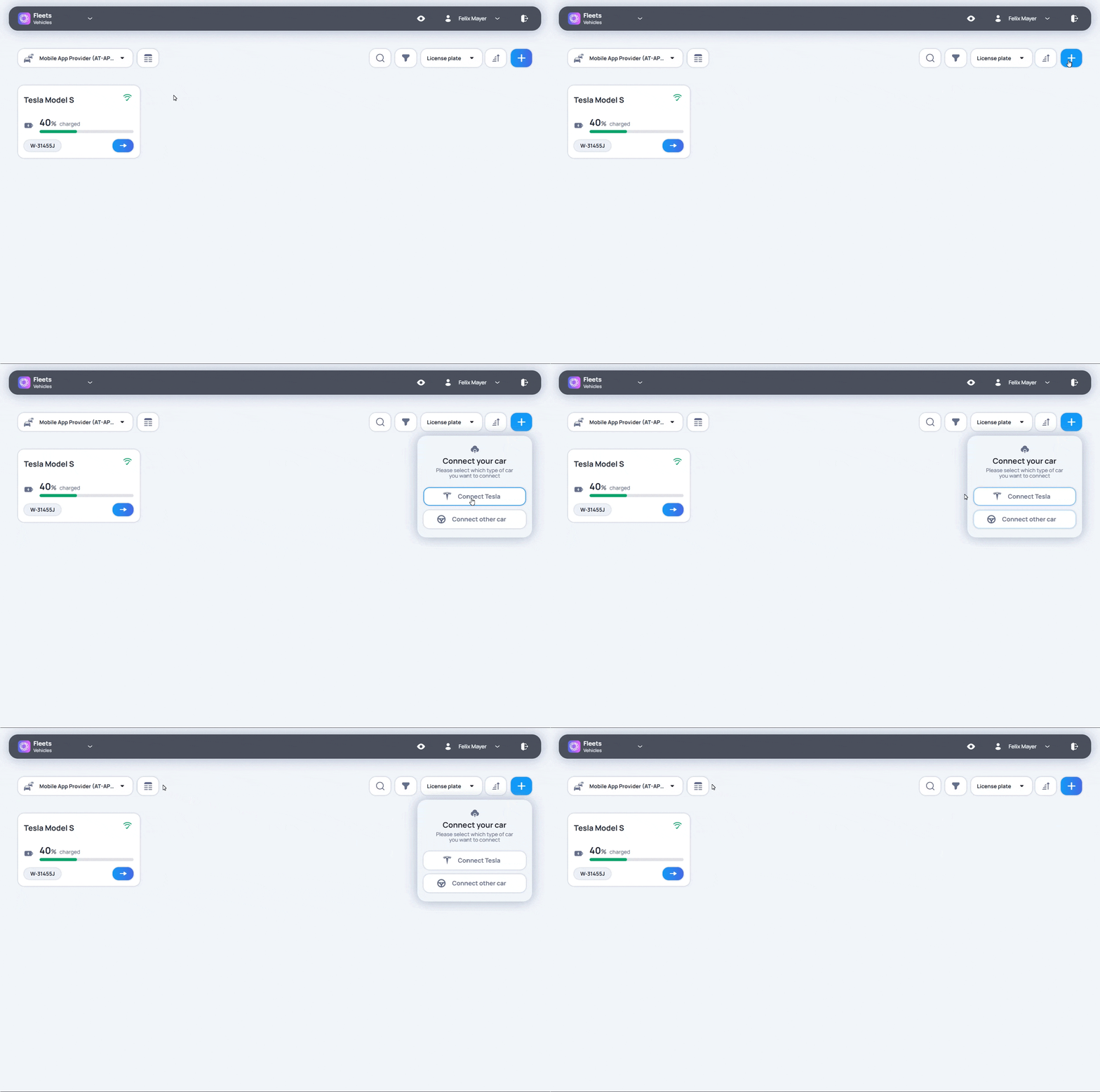
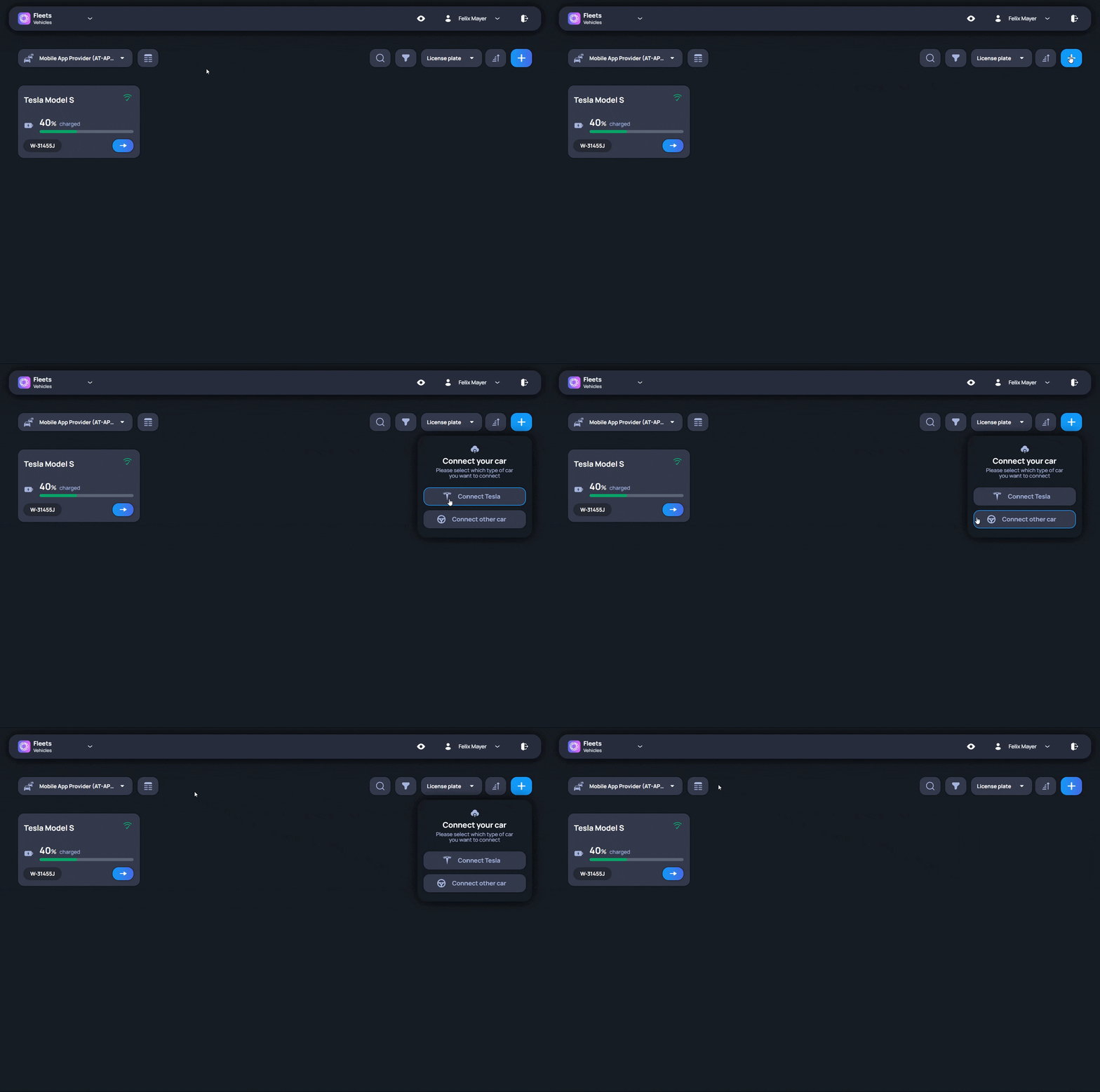
Import is the starting point for adding vehicles to Fleets.

Before a vehicle appears in the platform, it must be connected through a supported data broker. Depending on the fleet setup, this may be Tesla, Smartcar, or another broker.

The import process guides the user through the required steps. Vehicle records do not have to be created completely by hand, which is especially useful when several vehicles are added at the same time.

After the import is complete, the vehicle appears in Fleets. From there, the vehicle record becomes the place where users continue working with that vehicle, for example by reviewing details, adding documents, assigning drivers, or using it in other fleet processes.
<img src="https://mintcdn.com/smartmove/m8MK6S0e24St-L_9/gifs/import.gif?s=58b279c44a563d500cb22aa9dfd24ffa" alt="Vehicle import" className="img-margin-border block dark:hidden" width="1808" height="1198" data-path="gifs/import.gif" />

<img src="https://mintcdn.com/smartmove/m8MK6S0e24St-L_9/gifs/import_dark.gif?s=2b02b08bb598c9776c1b7544bd5d30b0" alt="Vehicle import" className="img-margin-border hidden dark:block" width="1808" height="1198" data-path="gifs/import_dark.gif" />

<br />

<Note>
  If any issues arise while importing a vehicle, contact us at [support@smartmove.eu](mailto:support@smartmove.eu) and we will provide an alternative solution tailored to your needs.

  Selecting certain options (e.g. collecting location data) displays a warning message on each vehicle to inform the driver.
  If you do not wish to track the location of your vehicles, feel free to contact us in this case as well and we will take care of it for you.
</Note>

<br />

<Tabs>
  <Tab title="Tesla" icon="https://mintcdn.com/smartmove/tZJHfzVbyW2r8RvS/images/tesla.svg?fit=max&auto=format&n=tZJHfzVbyW2r8RvS&q=85&s=7ba9f3dd92cd8f34843db4bc8f70deb3" width="24" height="24" data-path="images/tesla.svg">
    The Tesla platform only supports connecting tesla vehicles to third-party platforms.<br /><br />
    After logging in, it can be set what information will be shared for all vehicles under the account. These settings can be configured only once.<br />
    If the imported vehicle does not appear in the fleet list, refreshing the page should do the trick.
  </Tab>

  <Tab title="Other brands" icon="https://mintcdn.com/smartmove/tZJHfzVbyW2r8RvS/images/smartcar.svg?fit=max&auto=format&n=tZJHfzVbyW2r8RvS&q=85&s=2d8e9b227f46a0e670156f14777a1a06" width="24" height="24" data-path="images/smartcar.svg">
    Smartcar allows connecting vehicles from various brands to third-party platforms.<br />
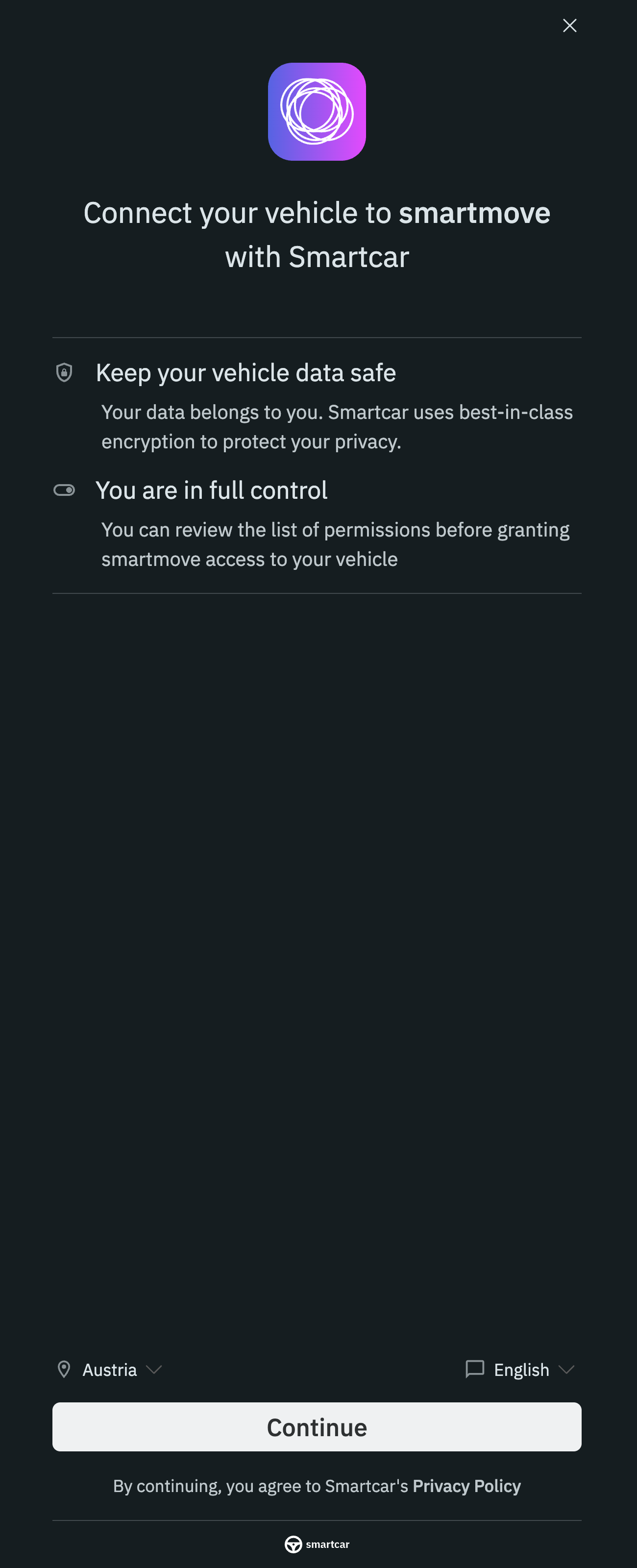
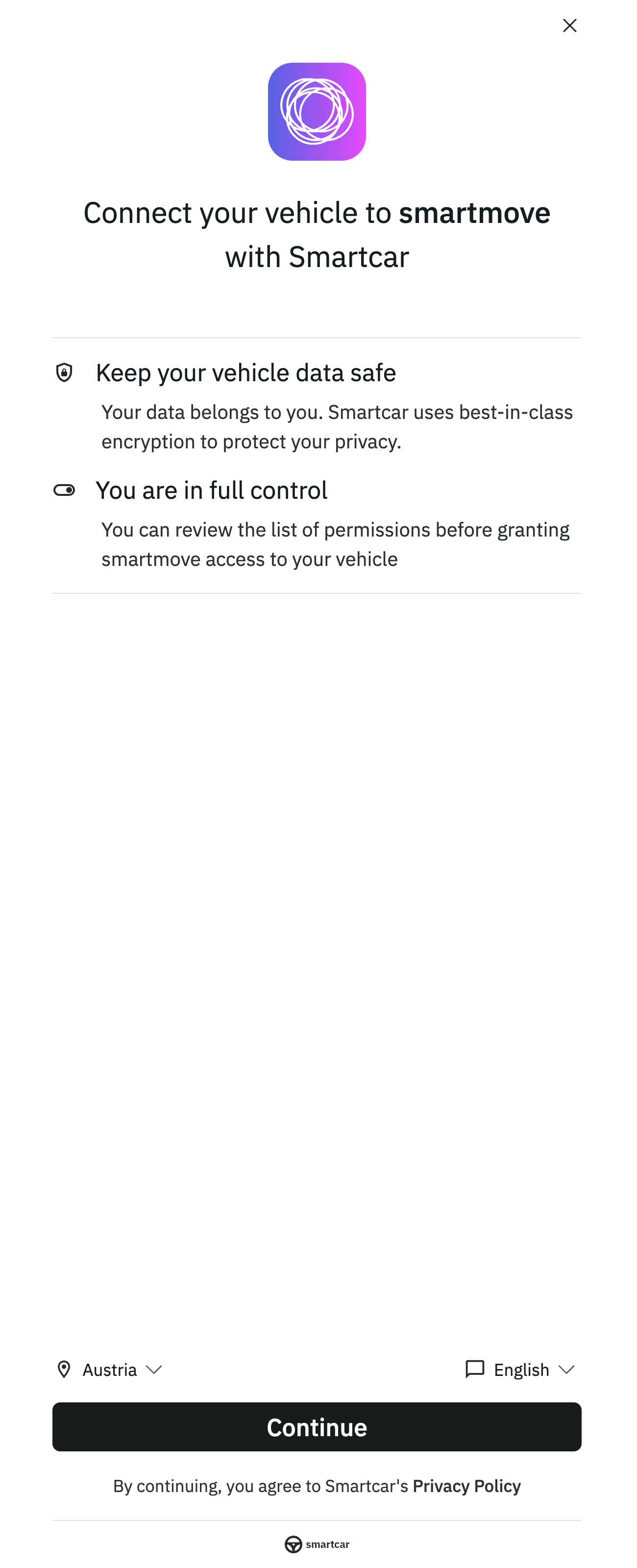
    Selecting Smartcar should result in a redirect to [https://connect.smartcar.com/preamble](https://connect.smartcar.com/preamble)<br /><br />
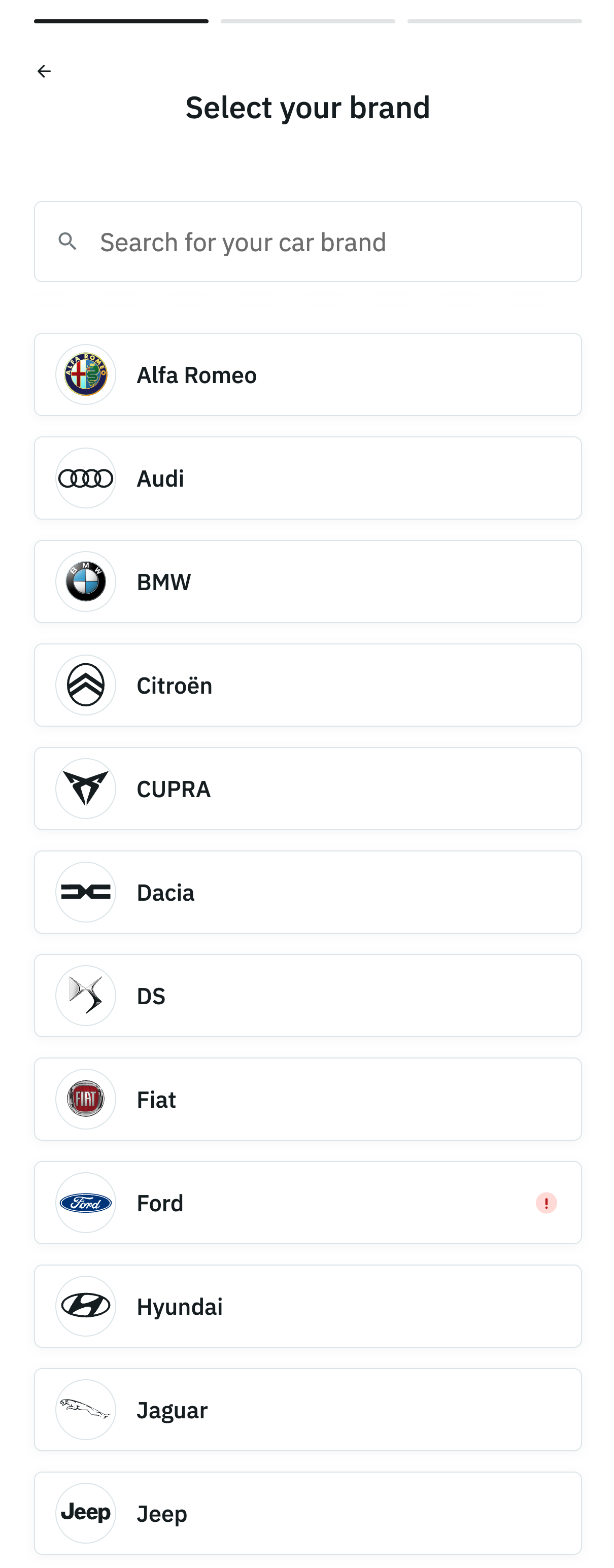
    The Fleets **logo** together with the inserted text **smartmove** text should be visible to confirm that the correct page has been opened. Before selecting the vehicle brand, the preferred country and language can also be chosen.

    <br />

    <div className="flex justify-center">
      <Frame>
        <img src="https://mintcdn.com/smartmove/g8d0UiyWqsFAuAyD/images/smartcar_redirect.png?fit=max&auto=format&n=g8d0UiyWqsFAuAyD&q=85&s=ede7f59f008b72b88208f7b0754965da" alt="Smartcar redirect" className="img-fleets-smartcar block dark:hidden" style={{marginRight:'10px'}} width="1300" height="3200" data-path="images/smartcar_redirect.png" />

        <img src="https://mintcdn.com/smartmove/g8d0UiyWqsFAuAyD/images/smartcar_redirect_dark.png?fit=max&auto=format&n=g8d0UiyWqsFAuAyD&q=85&s=c34a299db5dc767fa3ffda44b25d303c" alt="Smartcar redirect" className="img-fleets-smartcar hidden dark:block" style={{marginRight:'10px'}} width="1300" height="3200" data-path="images/smartcar_redirect_dark.png" />

        <img src="https://mintcdn.com/smartmove/g8d0UiyWqsFAuAyD/images/smartcar_brand_selection.png?fit=max&auto=format&n=g8d0UiyWqsFAuAyD&q=85&s=8e0edbf3ca7d31d5a67cead6340aa44b" alt="Smartcar brand selection" className="img-fleets-smartcar block dark:hidden" style={{marginLeft:'10px'}} width="1210" height="3090" data-path="images/smartcar_brand_selection.png" />

        <img src="https://mintcdn.com/smartmove/g8d0UiyWqsFAuAyD/images/smartcar_brand_selection_dark.png?fit=max&auto=format&n=g8d0UiyWqsFAuAyD&q=85&s=a3b55bb4481d5d34d00b8e9340f0f06b" alt="Smartcar brand selection" className="img-fleets-smartcar hidden dark:block" style={{marginLeft:'10px'}} width="1210" height="3090" data-path="images/smartcar_brand_selection_dark.png" />
      </Frame>
    </div>

    <br />

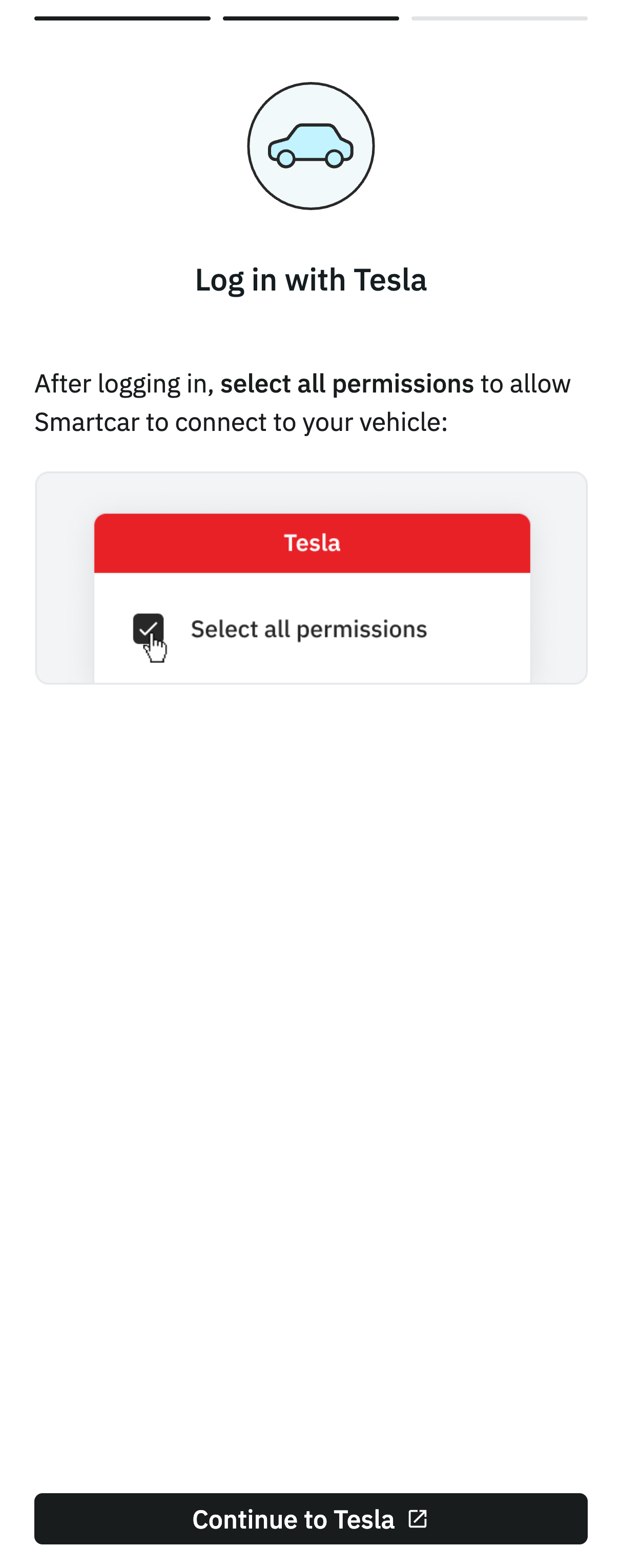
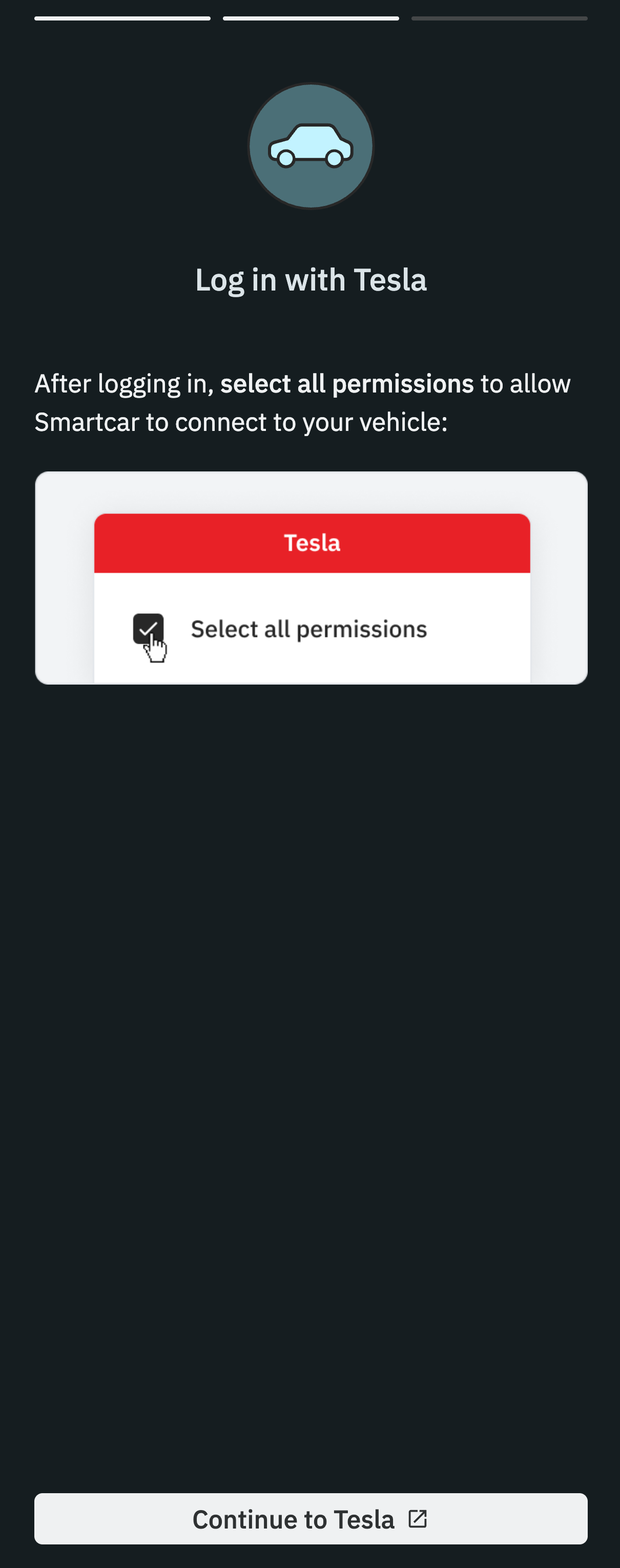
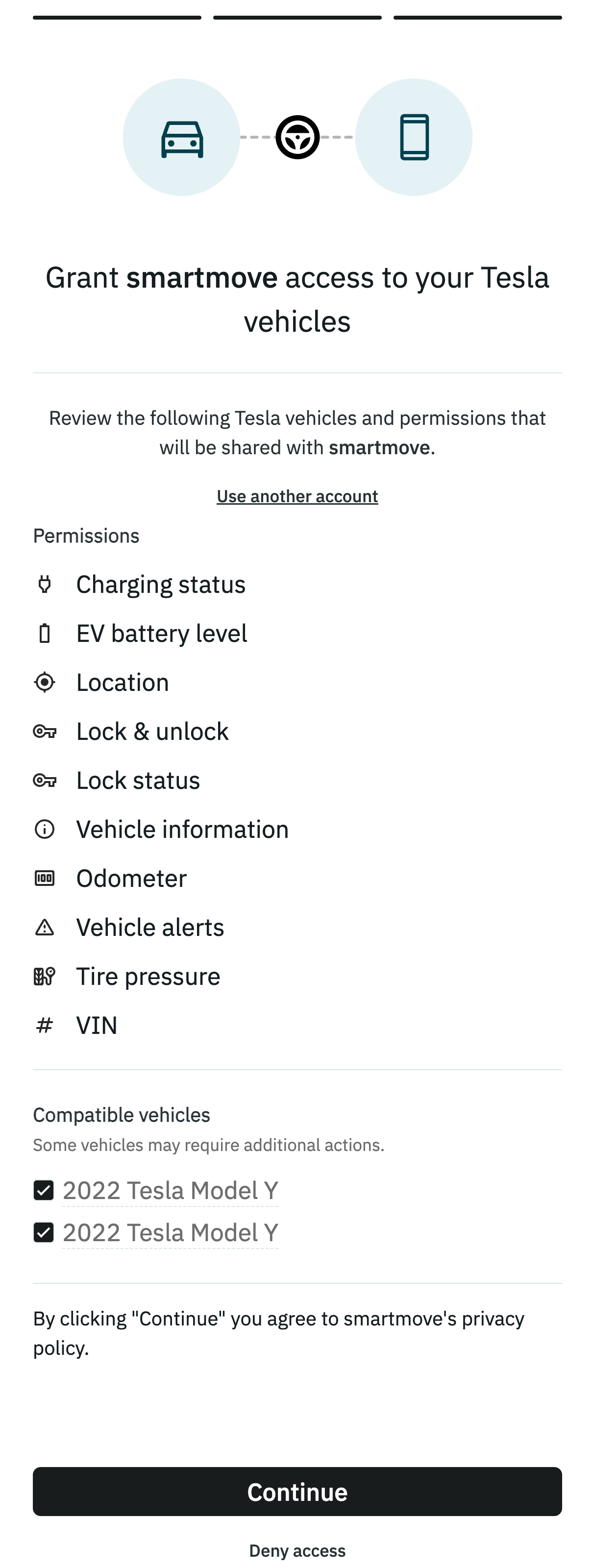
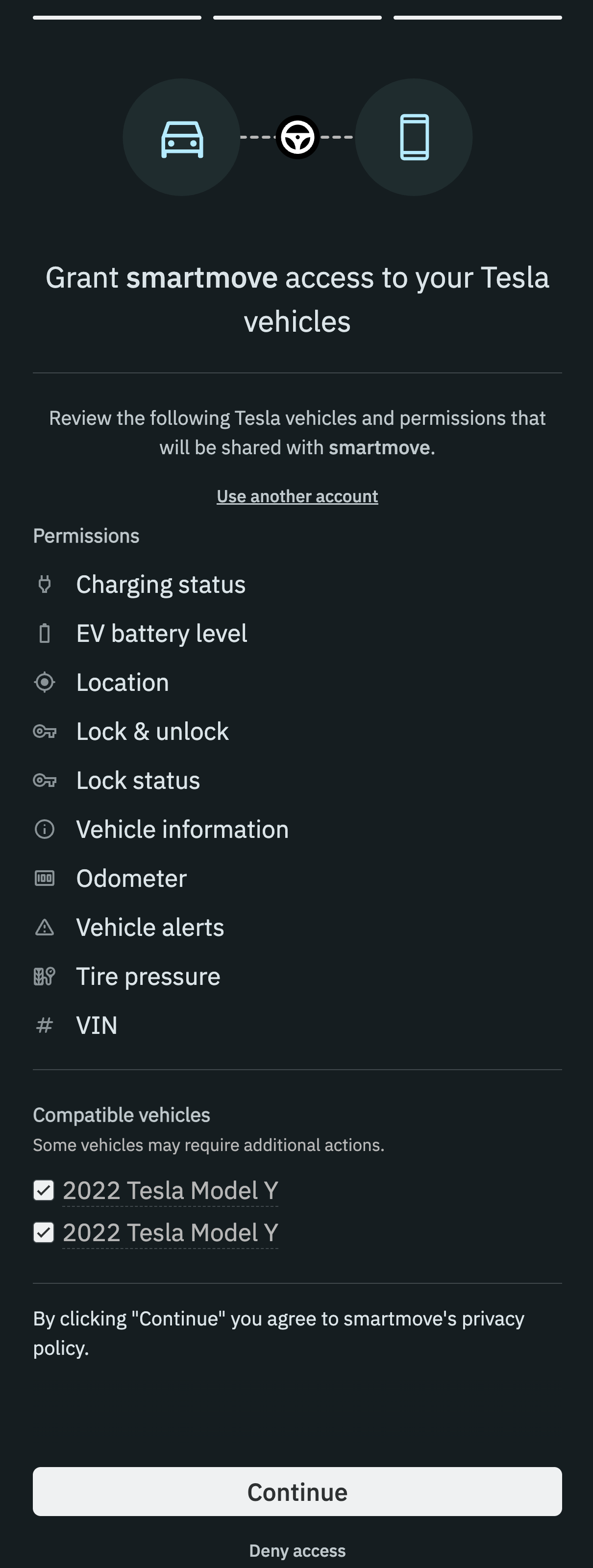
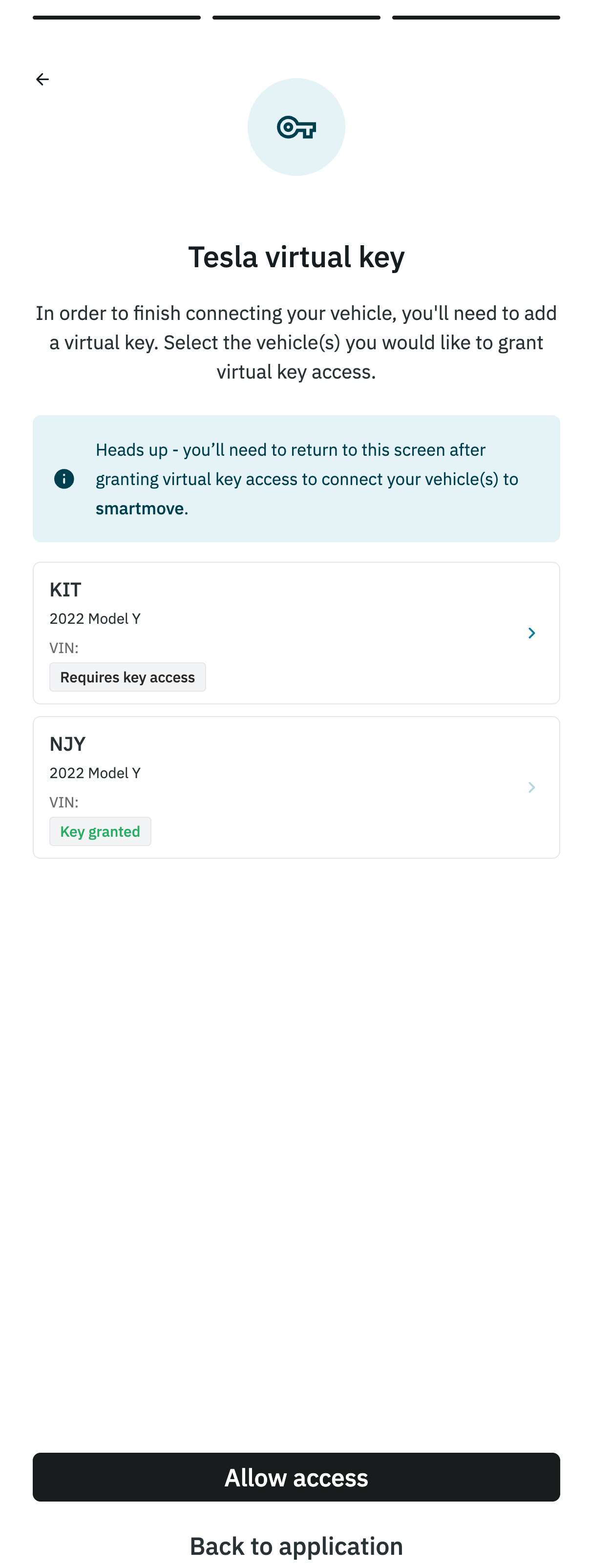
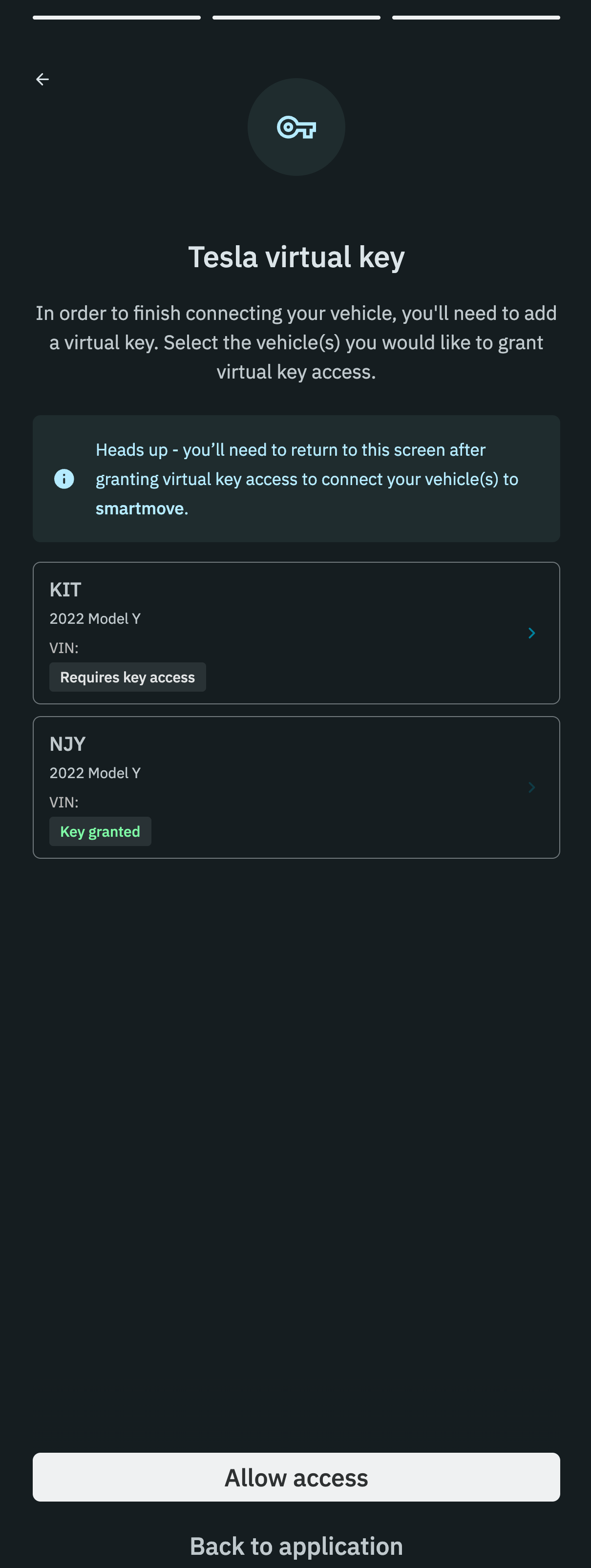
    As an example the import of a tesla through smartcar will be shown.<br />
    Depending on the brand, logging into the vehicle's make account can be either done on the same smartcar page or by pressing the **Continue to *brand*** button.

    <br />

    <div className="flex justify-center">
      <Frame>
        <img src="https://mintcdn.com/smartmove/g8d0UiyWqsFAuAyD/images/smartcar_login.png?fit=max&auto=format&n=g8d0UiyWqsFAuAyD&q=85&s=cc4beda57859a21c72b0c788f1384af9" alt="Smartcar login" className="img-fleets-smartcar block dark:hidden" style={{marginRight:'10px'}} width="1210" height="3060" data-path="images/smartcar_login.png" />

        <img src="https://mintcdn.com/smartmove/g8d0UiyWqsFAuAyD/images/smartcar_login_dark.png?fit=max&auto=format&n=g8d0UiyWqsFAuAyD&q=85&s=cd31e0cd486bbfc169b71b511eda75c5" alt="Smartcar login" className="img-fleets-smartcar hidden dark:block" style={{marginRight:'10px'}} width="1210" height="3060" data-path="images/smartcar_login_dark.png" />

        <img src="https://mintcdn.com/smartmove/g8d0UiyWqsFAuAyD/images/smartcar_grant_access.png?fit=max&auto=format&n=g8d0UiyWqsFAuAyD&q=85&s=759f39ab11ec095e93a65da6a3045686" alt="Smartcar grant access" className="img-fleets-smartcar block dark:hidden" style={{marginLeft:'10px', marginRight:'10px'}} width="1210" height="3200" data-path="images/smartcar_grant_access.png" />

        <img src="https://mintcdn.com/smartmove/g8d0UiyWqsFAuAyD/images/smartcar_grant_access_dark.png?fit=max&auto=format&n=g8d0UiyWqsFAuAyD&q=85&s=2b64bd8c54802d6cda1bd94afb9029ef" alt="Smartcar grant access" className="img-fleets-smartcar hidden dark:block" style={{marginLeft:'10px', marginRight:'10px'}} width="1210" height="3200" data-path="images/smartcar_grant_access_dark.png" />

        <img src="https://mintcdn.com/smartmove/g8d0UiyWqsFAuAyD/images/smartcar_virtual_key.png?fit=max&auto=format&n=g8d0UiyWqsFAuAyD&q=85&s=ee467940692308e7ad23aeabb1b1e348" alt="Smartcar virtual key" className="img-fleets-smartcar block dark:hidden" style={{marginLeft:'10px'}} width="1210" height="3210" data-path="images/smartcar_virtual_key.png" />

        <img src="https://mintcdn.com/smartmove/g8d0UiyWqsFAuAyD/images/smartcar_virtual_key_dark.png?fit=max&auto=format&n=g8d0UiyWqsFAuAyD&q=85&s=6ebacdcd0d85335595e891a4c64275a3" alt="Smartcar virtual key" className="img-fleets-smartcar hidden dark:block" style={{marginLeft:'10px'}} width="1210" height="3210" data-path="images/smartcar_virtual_key_dark.png" />
      </Frame>
    </div>

    <br />

    <Note>
      In order to allow connections:

      * A [Virtual key](https://smartcar.com/docs/connect/other-actions/tesla-virtual-key) need to be added to the Tesla vehicle.
      * A mobile device has to be paired via [Bluetooth](https://smartcar.com/docs/connect/other-actions/rivian-bluetooth-pairing) with the vehicle for Rivian.
    </Note>
  </Tab>
</Tabs>